Step 1/9
Open Settings and go to Cellular / Mobile Data
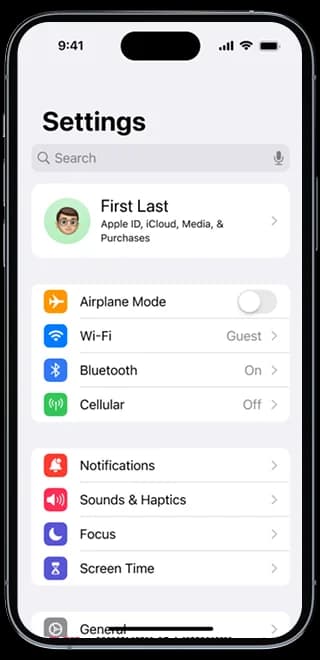
Open Settings and go to Cellular / Mobile Data
Tap Add eSIM.
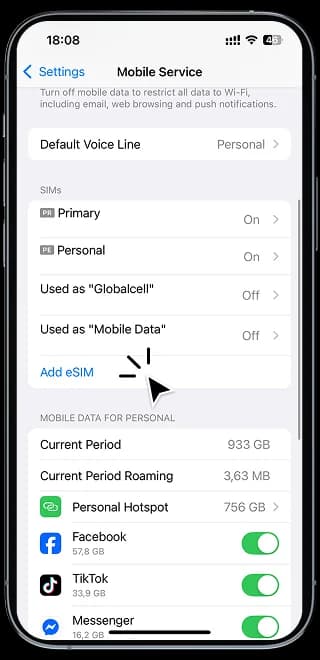
Select Use your QR Code, then scan the provided code.
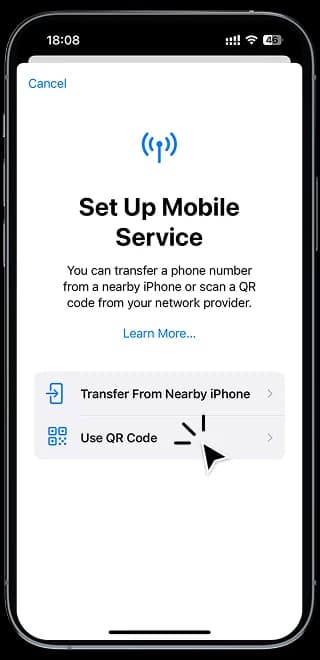
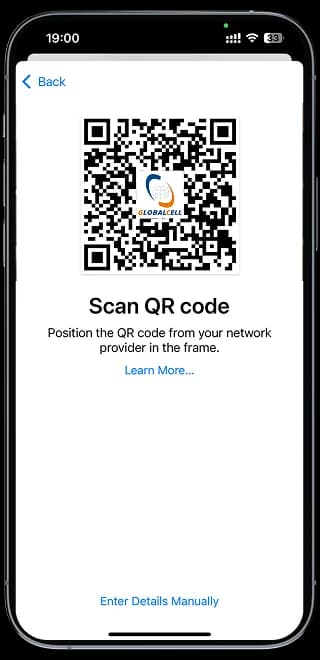
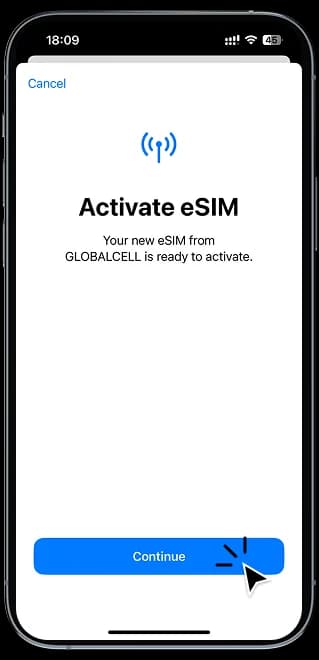
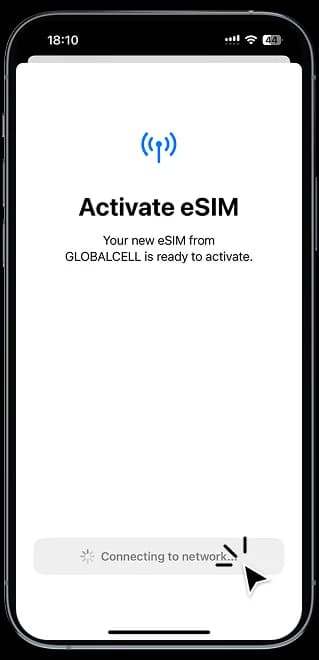
Tap Continue. Once downloaded, proceed with setting up your GLOBALCELL line.
Choose a name for your line. You can select Travel/Business... or create a custom label with your preferred name.
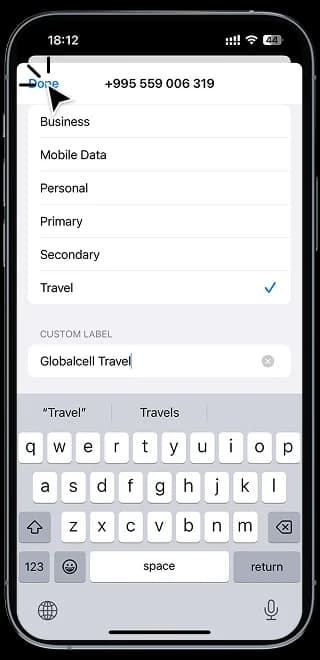
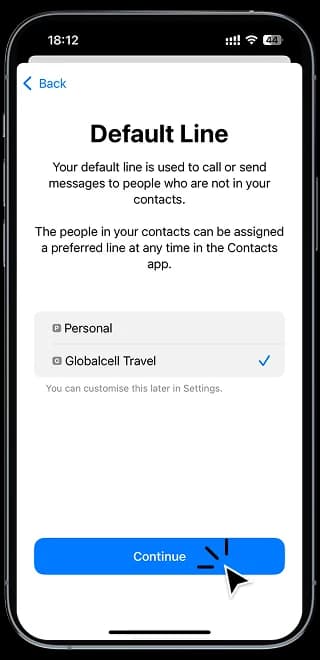
Set your default line as your mobile carrier. Use the same selection for iMessage, FaceTime, and Apple ID, except for mobile data, which should be set to GLOBALCELL Travel if you're already abroad.
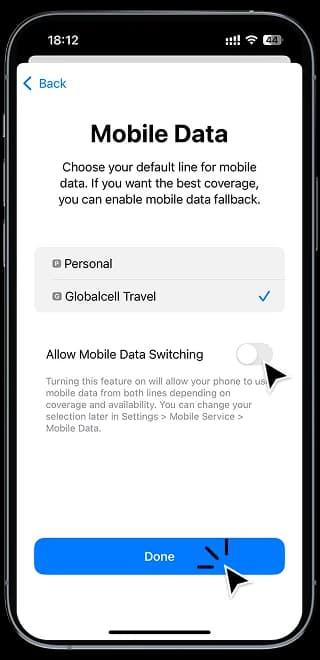
Disable mobile data switching.
Go to Settings > Cellular / Mobile Data, then select the Globacell line.
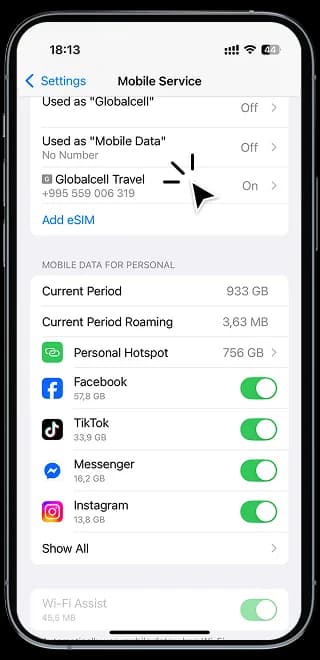
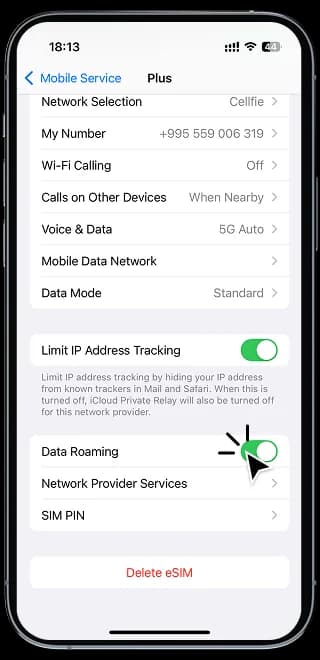
Enable Data Roaming for the GLOBALCELL’s line. Then, turn off Wi-Fi to activate the connection.
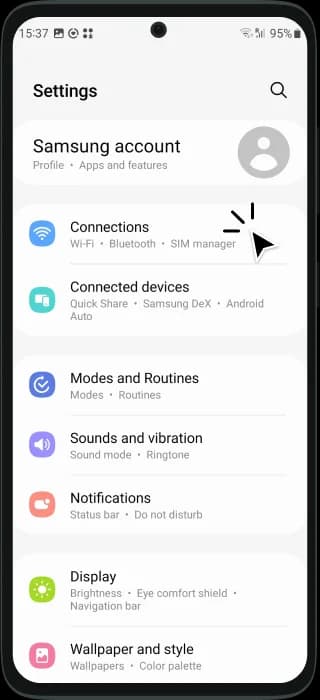
Open Settings and navigate to Connections.
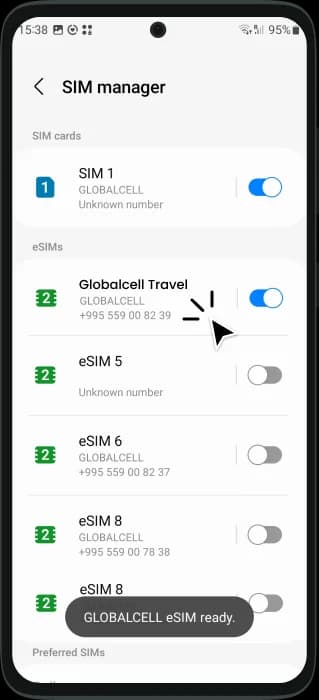
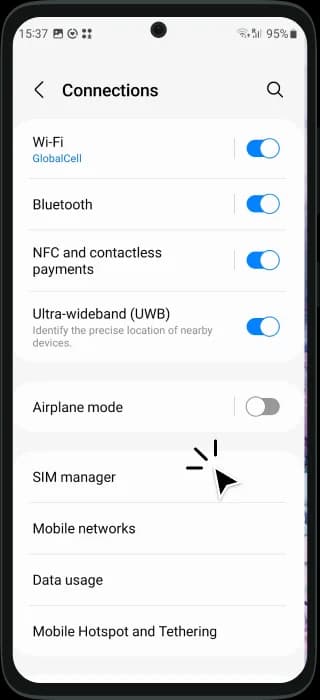
Select SIM Manager.
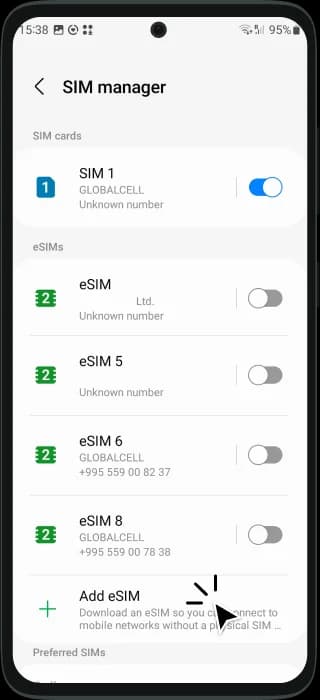
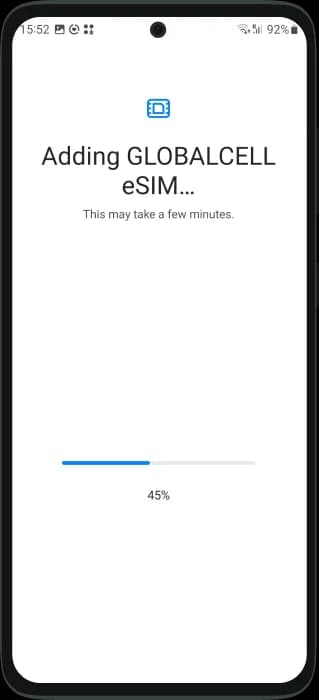
Tap Add eSIM.
Choose Use your QR Code, then scan the provided code.
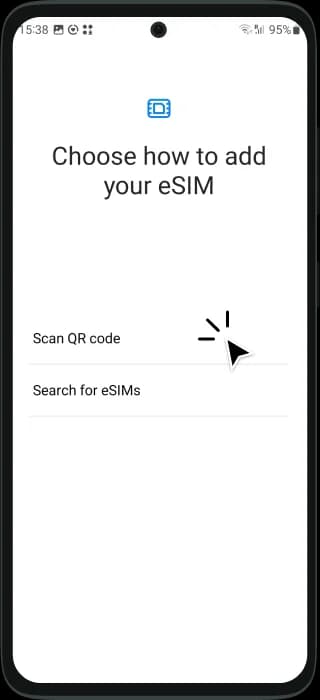
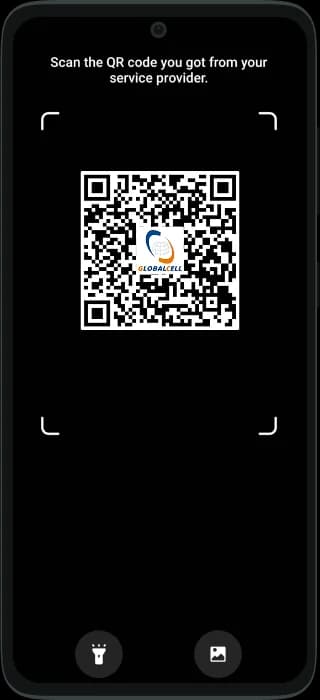
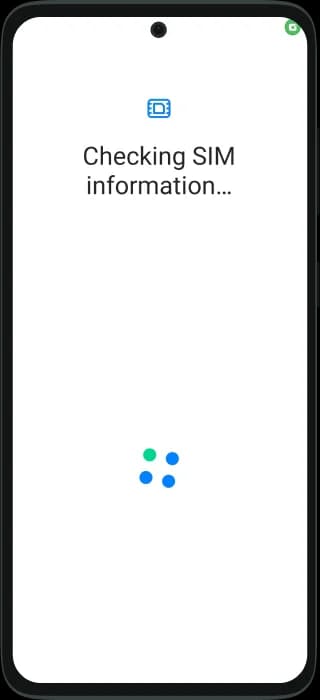
Add and enable GLOBALCELL Travel eSIM.
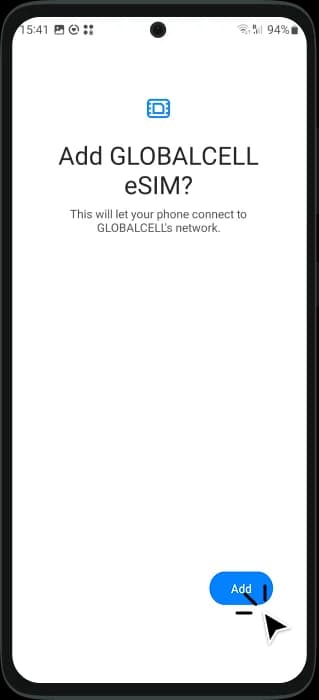
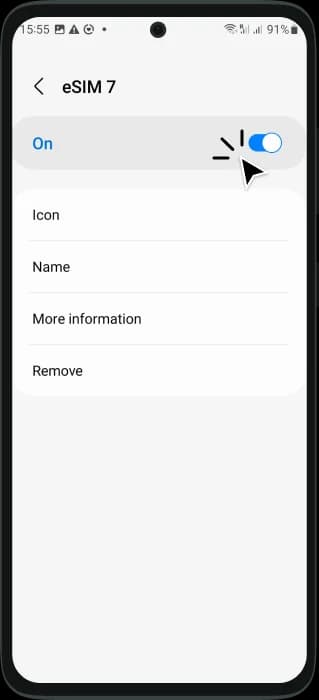
Tap on GLOBALCELL Travel eSIM and switch on